START HERE
How to Use Runway AI for Beginners
This practical guide shows how to use runway ai for beginners, from preparing a clear idea to reviewing, refining, and exporting a useful video result.
Numbered steps
A reliable beginner workflow keeps the first generation simple, gives the model clear visual direction, and treats each result as a draft to improve.
-
1
Choose one visual goal
Start with a single shot and one main action. Decide whether you want a person, product, place, or object to be the focus, then choose a camera view and mood before writing the prompt.
-
2
Write a specific prompt
Describe the subject, action, setting, lighting, composition, and movement in plain language. Avoid combining several scenes or unrelated actions in one short request.
-
3
Generate and inspect
Create an initial clip, then check motion, subject consistency, framing, and unwanted details. Keep the useful parts of the prompt and change only one weak instruction at a time.
-
4
Refine the strongest take
Use a more precise prompt or a suitable source image when the first result is close but imperfect. Short, controlled revisions are easier to compare than a completely new concept.
Prerequisites
You do not need editing experience to begin, but a few decisions and files make the first session much smoother.
-
A clear idea for one short shot — Write the subject, action, setting, and mood in one sentence.
-
A supported browser and stable internet connection — Generation happens online, so avoid switching networks during a render.
-
A Runway AI workspace or available access method — Access options can change, so check the current sign-in or trial flow before planning a larger project.
-
A reference image, if the composition must stay consistentoptional — Use a clean, well-lit image with the main subject clearly visible.
-
A rough export planoptional — Know where the clip will be used, such as a social post, presentation, or edit timeline.
Related guides
Choose the next workflow based on the device you are using or the kind of source material you already have.
- how to use runway ai on iphone Follow a mobile-first setup for creating and reviewing clips on an iPhone.
- runway ai online video See how the browser-based video workflow fits into a quick creation session.
- runway ai image to video Turn a still image into a moving shot when you already have a visual starting point.
- runway ai video editor Explore editing-focused work after you have generated one or more clips.
Common errors and fixes
Early results often fail for understandable reasons. Diagnose the specific problem instead of rewriting the entire idea without knowing what changed.
It cannot guarantee exact motion
A prompt can request a slow pan, a turn, or a hand gesture, but generated motion may drift, accelerate, or add movement you did not ask for.
What to do instead
Reduce the scene to one subject and one action, then describe the camera movement separately from the subject movement.
It may change faces, hands, or objects
Fine details can shift between frames, especially when a subject is partly hidden, making a fast gesture, or interacting with several objects.
What to do instead
Use a clearer reference image, simplify the interaction, and avoid crowded compositions in the first attempt.
It does not replace a complete edit
A generated clip is usually one piece of a project. It may not provide the exact duration, continuity, sound design, captions, or sequence you need.
What to do instead
Generate several short takes, select the most consistent ones, and finish the story in a separate editing workflow.
Long prompts can dilute the result
Packing multiple scenes, styles, characters, and camera moves into one request makes it harder to tell which instruction controlled the output.
What to do instead
Use a short prompt for the first pass and add only the missing detail in the next revision.
Advanced tips
Once the basic workflow feels comfortable, these habits make results easier to compare and more useful in real projects.
-
Separate content from camera direction
Write what is visible first, such as the subject and action. Add camera language afterward, such as a locked shot, slow push-in, tracking movement, or overhead view.
-
Use concrete visual nouns
Specific descriptions usually give you more control than abstract instructions. Name the material, setting, time of day, color relationships, and visible movement you actually want.
-
Change one variable at a time
If the subject is right but the camera is wrong, keep the subject description and revise the camera instruction. This makes successful wording easier to identify.
-
Judge continuity before polish
For a sequence, check whether the subject, direction, scale, and lighting remain believable from shot to shot before spending time on minor visual details.
-
Plan for an editor's timeline
Leave room for trimming, transitions, captions, and sound. A slightly imperfect clip with a usable beginning and ending can be more valuable than a striking clip that cannot be cut cleanly.
Before and after
The difference between a vague request and a structured prompt is often visible in the framing, action, and visual priorities.
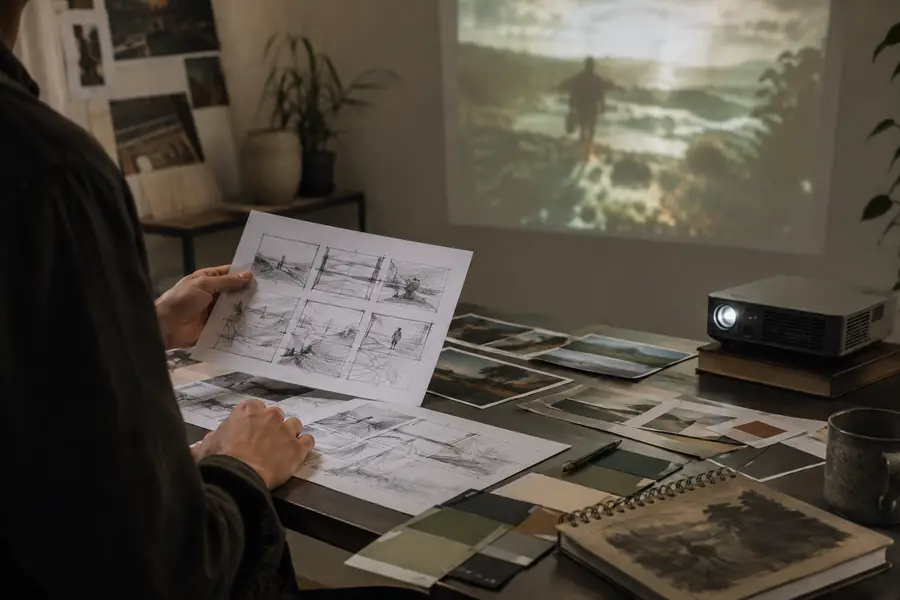
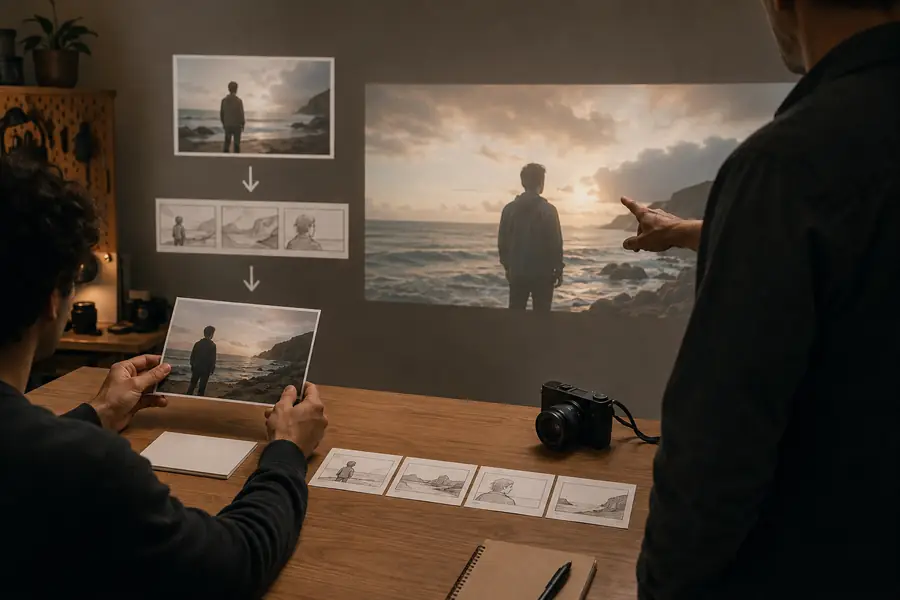
Refine the instruction, not just the number of attempts.
Loose promptStructured promptTutorial FAQ
These answers cover the questions beginners most often have when starting a first Runway AI video workflow.
Begin with one short visual idea, then describe the subject, action, setting, lighting, and camera movement in a focused prompt. Generate a draft, inspect the motion and consistency, and revise one instruction at a time rather than changing everything at once.
Include the main subject, what it is doing, where it is, the visual style or lighting, and the camera view or movement. A prompt such as “a close-up of a ceramic cup on a wooden table, morning light, slow camera push-in” is easier to control than a list of unrelated scenes.
Yes, beginners can create an initial clip without knowing advanced editing techniques. However, choosing the best take, trimming it, adding sound, and combining several shots still benefits from basic editing skills.
Video generation interprets language probabilistically, so it may prioritize some details and weaken others. Simplify the scene, put the most important subject and action first, use concrete visual terms, and make a focused revision.
Keep the subject description, framing, and lighting consistent across related prompts. Use a suitable reference image when available, avoid changing several variables at once, and generate separate shots instead of forcing a long sequence into one request.