Mobile video guide
How to Use Runway AI on iPhone Without Guesswork
This guide explains how to use runway ai on iphone for short video creation, from opening the right mobile route to checking a finished clip before you save or share it.
Choose your route
Decide Which Case You Are
Start by matching your goal to the simplest iPhone workflow. The browser route is flexible, while the app route is usually more convenient for repeated mobile sessions.
-
1
You are trying it once
Open Runway in Safari when you want to test a prompt, upload one asset, or avoid installing another app. Use a stable Wi-Fi connection and keep the browser tab open while the generation runs.
-
2
You create from your phone often
Use the official iPhone app when available in your region and when you want quicker access to recent projects, camera-roll media, and mobile notifications. Confirm that you are using the official listing before signing in.
-
3
You already have a source image
Choose an image-to-video workflow instead of starting from text alone. A clear subject, visible movement direction, and a short motion instruction usually make the first result easier to evaluate.
-
4
You need precise finishing
Generate on the phone, then move the result to a desktop editor if you need detailed timing, layered audio, captions, or frame-level corrections. The iPhone is a capable starting point, not every production tool at once.
Before you open it
Path A: Prepare Your iPhone Session
A few small checks prevent the most common mobile interruptions and make it easier to judge whether a generated clip is actually usable.
-
A supported iPhone with enough free storage for downloaded previews and exports — Delete old screen recordings or duplicate clips if storage is nearly full.
-
A reliable Wi-Fi or cellular connection — Generation happens online, so an interrupted connection can delay uploads or previews.
-
Safari or the official Runway mobile app — Use the official site or app listing, and avoid unfamiliar clones asking for credentials.
-
A short prompt with one subject, one action, and one visual style — For example: “A red kite rises above a quiet beach, handheld documentary look.”
-
A source image in your Photos libraryoptional — Needed only for image-to-video or other workflows that begin with an uploaded visual.
-
A destination for the finished fileoptional — Choose Photos, Files, or a cloud folder before exporting so the clip is easy to find.
Useful next steps
Path B: Create, Review, and Refine on Mobile
Once the session is ready, work in short passes: create one clear version, inspect the motion, then revise only the part that failed.
- how to use runway ai for beginners Use this beginner walkthrough when you want a broader introduction before working entirely from an iPhone.
- runway ai online This online overview focuses on accessing the creative workspace from a browser without relying on a desktop setup.
- runway ai image to video See how an uploaded still can become a moving clip when your mobile project starts with an image.
A repeatable mobile flow
Final Check Before You Export
Mobile creation has evolved toward shorter, review-first sessions. Treat each stage as a checkpoint so a polished-looking preview does not hide a technical problem.
-
Plan around a finished idea
Mobile video work often began with a complete concept, a prepared shot list, and separate desktop tools. On a phone, it is more practical to define one shot at a time.
-
Prompt and image workflows converge
Text prompts and uploaded stills became complementary starting points. A source image can anchor composition, while the instruction describes movement, timing, and mood.
-
Review becomes part of generation
Short previews make it easier to compare variations on a small screen. Instead of accepting the first output, creators can check subject stability and motion before saving.
-
Export is the handoff
The iPhone can take a concept through generation and review, then hand the clip to Photos, Files, social publishing, or a larger editing workflow for finishing.
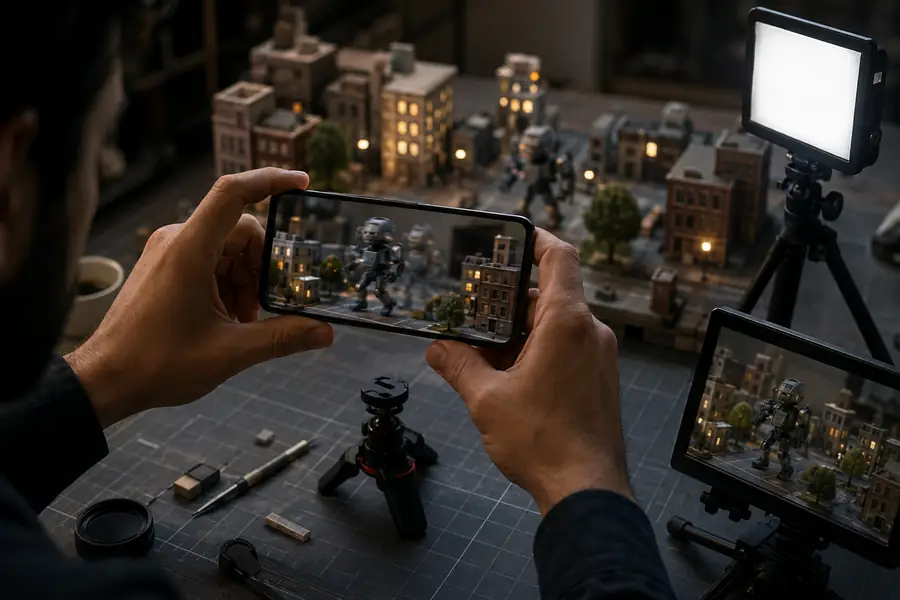

Compare the first preview with the version you would actually keep: check framing, motion, faces, text, and the final second before exporting.
Before reviewAfter reviewKnow the boundaries
It cannot fix a vague idea automatically
A broad prompt can produce attractive but inconsistent results, especially when it contains several subjects or competing actions.
What to do instead
Rewrite it around one subject, one action, one camera movement, and one style.
It is not a full desktop edit suite
An iPhone workflow may be inconvenient for complex timelines, layered sound, detailed color work, or precise caption placement.
What to do instead
Export the strongest clip and finish it in your preferred desktop or tablet editor.
A preview is not proof of quality
Small screens can hide flickering details, warped hands, unstable lettering, or motion that feels wrong when viewed repeatedly.
What to do instead
Watch the clip at full size, replay the beginning and end, and inspect it before sharing.
Mobile access depends on the current app and browser setup
Menus, permissions, upload behavior, and available features can change between app versions, iOS releases, and regions.
What to do instead
If the app route behaves unexpectedly, try Safari, check permissions, and use the official help or account settings.
Quick answers
Tutorial FAQ
These answers cover the practical questions people ask when they want to run the workflow from an iPhone.
Open the official Runway experience in Safari or use the official iPhone app if it is available to you. Choose a text-to-video or image-to-video workflow, enter a focused prompt, review the preview, and export only after checking the motion and framing.
Yes, a browser route can be useful when you want to avoid installing an app or when the app is unavailable in your region. Safari may show a different layout from desktop, so keep the prompt short and allow the upload or generation process to finish before closing the tab.
No, the app is not the only possible route; Safari may handle many tasks from the mobile website. The app can be more convenient for repeated sessions and media access, but you should use the official listing and review requested permissions before proceeding.
Yes, workflows that accept an image can generally begin with a file from your Photos library or Files app. Choose a clear image with a visible subject, then describe the movement you want rather than repeating every detail already shown in the picture.
Video generation is processed online, so duration can depend on the request, service load, upload size, and connection quality. Keep the phone connected, avoid switching repeatedly between unstable networks, and wait for the preview to finish before starting several new jobs.
Use the available export or download control, then choose Photos or Files when iOS presents the destination options. Check the saved clip in its final location and confirm that the resolution, duration, and audio are correct before posting it.